

Create and manage plans
Plans define the session credits and cancellation allowance a member receives for a session type. CoachTrack calls these records plans in the Plans area; some dialogs may label the same record as a session plan or session package.
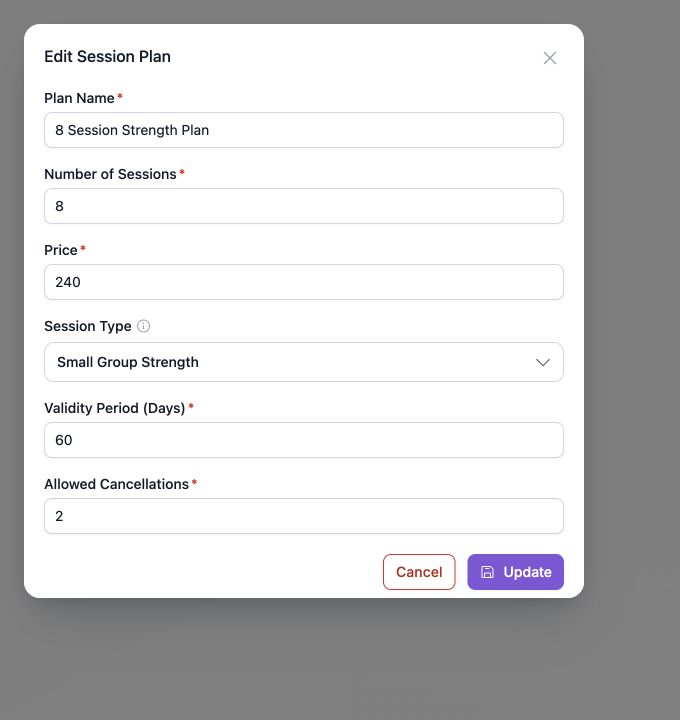
Before you create a plan
- Create the session type first.
- Use an active, non-demo session type.
- Decide how many sessions are included and how many cancellations are allowed.
Demo session types do not use plans and are filtered out of the plan selector.
Create a plan
- Open Plans.
- Expand the session type that should own the plan.
- Select Add plan.
- Enter the plan details.
- Select Add.
Plan fields
| Field | What it controls |
|---|---|
| Plan Name | The name shown when the plan is assigned to a member. |
| Number of Sessions | The number of session credits included. |
| Price | The price of the plan. |
| Session Type | The session type for which the credits can be used. Demo session types are not selectable. |
| Validity Period (Days) | How long the plan remains valid, expressed in days. |
| Allowed Cancellations | The number of cancellations that can use the plan's cancellation allowance before a cancellation consumes a session credit. |
Zero allowed cancellations is valid. In that case, a cancelled participant consumes a session credit. Changing the participant to Attended or No-show also consumes a session credit.
How plans are used
- Assign the plan from the member profile or the member's plan area.
- Schedule sessions using the matching session type.
- When a session is completed, credits are consumed for participants marked Attended or No-show.
- When a session is cancelled, CoachTrack uses the participant's available cancellation allowance first; if none is available, it consumes that participant's session credit.
- Deleting a session later can reverse the related plan accounting when the user has permission to delete sessions.
Edit or remove a plan
Expand the session type in Plans, then use the plan's edit or delete action. Review the member impact before removing a plan that has already been assigned.
Updated 10 days ago
Did this page help you?