

Configure session types
Session types define the service a member books or a coach delivers. They control the participant limit, activity-completion rule, delivery mode, and which plans can be attached.
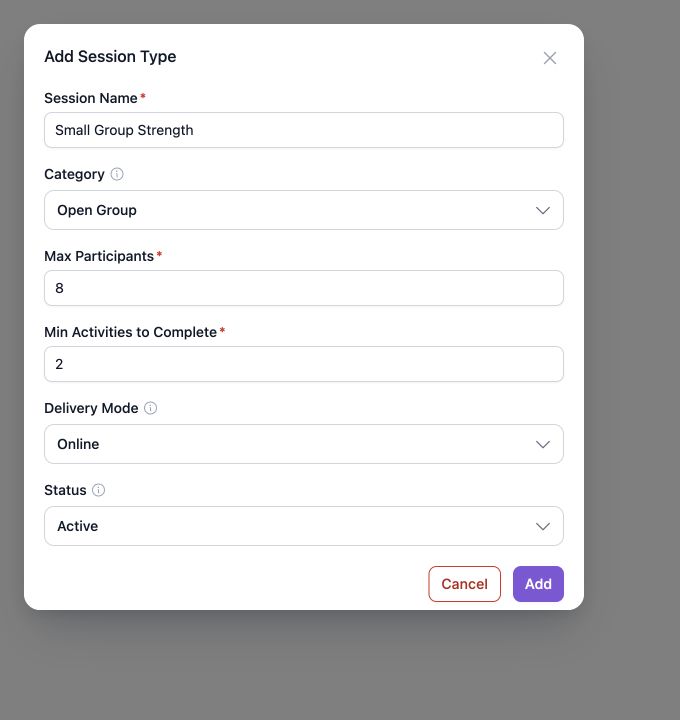
Where to manage them
- Open Plans.
- Select Add session type to create one.
- Expand a session type row to see its plans.
- Use the edit action on the row to update it.
Session type categories
| Category | Use it for | Participant rules |
|---|---|---|
| Individual | One-to-one coaching | The participant limit is one and the maximum-participants field is hidden. |
| Fixed Group | A group with a defined capacity | Set Max Participants to the group capacity. |
| Open Group | A group session that accepts multiple members up to a capacity | Set Max Participants to the maximum number of members. |
| Demo | Demonstrations, trials, or introductory sessions | Plans are not allowed, activities are not required, and a member is not required when scheduling. |
Session type fields
- Session Name — The name coaches and members see.
- Category — Determines the participant rules. The category cannot be changed after the session type is created.
- Max Participants — Shown for Fixed Group and Open Group types.
- Min Activities to Complete — The minimum number of activities that must be recorded before the session can be completed. Demo types do not use this setting.
- Delivery Mode — Choose In person for supported one-off sessions.
- Status — Set the type to Active when it should be available for scheduling. Use Inactive to keep it configured without making it an active choice.
Recommended setup order
- Create the session type.
- Set its participant and activity rules.
- Add one or more plans to the session type, unless it is a demo type.
- Schedule a session from the Calendar.
Changing a session type does not change the category of sessions that already exist. Review the type before using it for new scheduling.
Updated 10 days ago
Did this page help you?